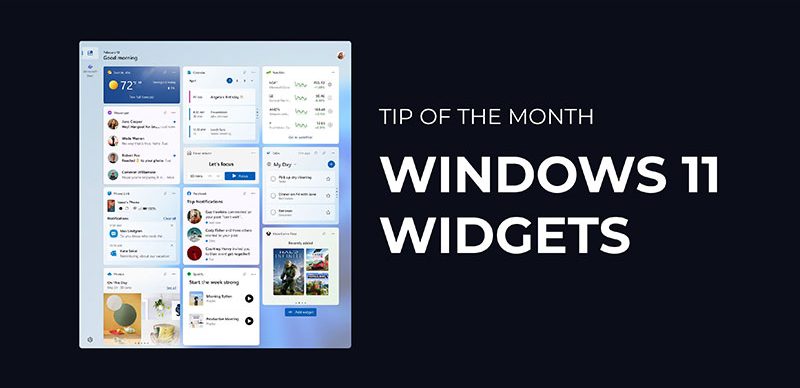
Following on from last months Tip Of the Month about Multiple Desktops this month we have another Windows 11 feature, Widgets!
Windows 11 Widgets offer a convenient way to stay updated with personalised information like weather, news, calendar events, and more without opening full apps. Here’s how to personalise them to your preferences.
Accessing the Widgets Board
Once the board is opened Widgets are on the left side, you can open the Widgets board in several ways:
Taskbar Icon:
Click the Widgets icon(usually displaying weather) on the left side of the taskbar at the bottom of your screen to read the default Widget feeds.
Keyboard Shortcut:
Press Windows key + W to open Widgets.
If Widgets are not present on your taskbar
– Right click taskbar and choose taskbar settings.
– Click the Widgets on/off toggle then close the window
Adding Widgets

Open the Widgets board.

Click the plus sign (+) next to "Widgets" on the left of the board.

Browse the list and click "Pin" next to any widget you want.

For more options, click "Find more widgets" to explore the Microsoft Store for free and paid Widgets.
Customising Widgets
Rearrange:
Click and drag widgets that have this icon ✋🏻 on mouseover.
Resize:
Some widgets offer size options—click the three-dot menu to adjust.
Remove:
Click the three dots (⋯) on a widget and select “Unpin”.
Additional Features
Personalised Feed:
News and updates tailored to your interests.
Discover Tab:
Explore and add new widgets.
Following Tab:
Follow specific topics or news sources.
Watch Tab:
View video clips and live streams.

Play Tab:
Access games to download and play.

Settings:
Customise preferences like weather location and notifications.
Want more tips and updates?
Click below to explore our latest Tip of the Month and news articles on our website.
Visit Our News Hub
The Mooncomputers team